Your phone
Answer your agents from your iPhone, on Wi‑Fi or cellular. No app store, no port forwarding, no tailnet required.
How it works#
The phone app is a web app on onestation.dev that you add to your Home Screen. It reaches your Mac through the onestation relay, end-to-end encrypted: the relay forwards sealed messages it cannot read. Your Mac needs to be on, online and running onestation with an active trial or license.
Pair a phone#
- Show the code on your Mac
In onestation, open Settings
Phone & devices (G then S). The QR code works once and expires in 10 minutes. New code makes a fresh one. - Scan it with the iPhone camera
Open the link. The phone shows “Compare this code on your Mac” and a six-digit code.
- Allow this phone on your Mac
Your Mac shows Allow this device? with a code. Compare all six digits. Click Allow only if both codes match; otherwise click Deny.
- Add to Home Screen
In Safari, tap Share › Add to Home Screen. Open onestation from there from now on.
The six digits prove that the phone you are allowing is the one that scanned your code. Names shown on the Mac are supplied by the phone, so trust the digits, not the name.
What you can do on the phone#
Answer questions (including multiple choice), type replies, message any agent, interrupt, start a configured project, and kill an agent after confirming. The same two-second undo applies.
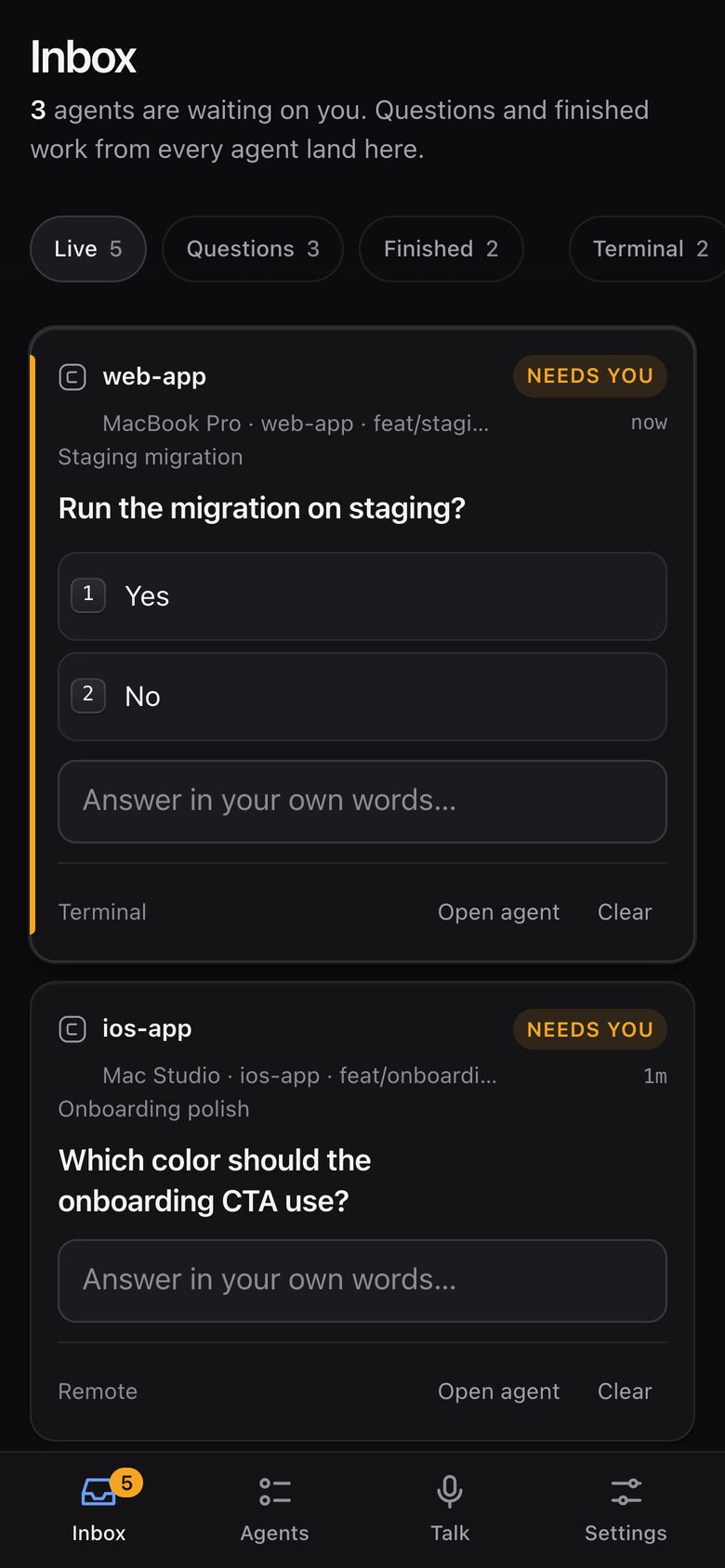
The phone app doesn’t send push notifications yet. Open it from your Home Screen to see what is waiting.
Offline states#
| The phone shows | What it means |
|---|---|
| Live · your Mac | Connected. Answers go through right away. |
| Reconnecting… | The connection dropped and is being restored. Wait a moment. |
| Mac offline — last updated 14:32 | Your Mac is asleep, offline or onestation isn’t running. You see the last state, but answering is paused. Nothing is queued. |
| Mac offline — outcome unknown | The connection dropped while sending. Refresh and check the card before sending again. |
The phone never resends an answer by itself, so nothing is delivered twice.
More than one Mac#
Pair the same phone with each Mac. Each pairing has its own keys, and the phone app lets you switch between them. Each Mac can pair up to 10 phones; one license covers 2 Macs.
Revoke a phone#
Settings
Clearing Safari’s website data for onestation.dev also removes the pairing on that phone; pair again afterwards.
Still stuck?Email us with what you tried. A person reads every message, usually within one working day (CET).
Email support