Notifications & sounds
onestation tells you when an agent needs you, finishes, or gets stuck. Choose what you hear and see.
Events#
| Event | When |
|---|---|
| Question | An agent asks something or waits for a permission. |
| Done | An agent finished its task. |
| Stuck | An agent stopped making progress or failed. |
Turn each one on or off in Settings
Sounds#
Settings
Pause for a while#
Click the onestation menu bar icon and choose Pause Notifications for 1 Hour. macOS Focus modes also silence banners as usual.
The pill#
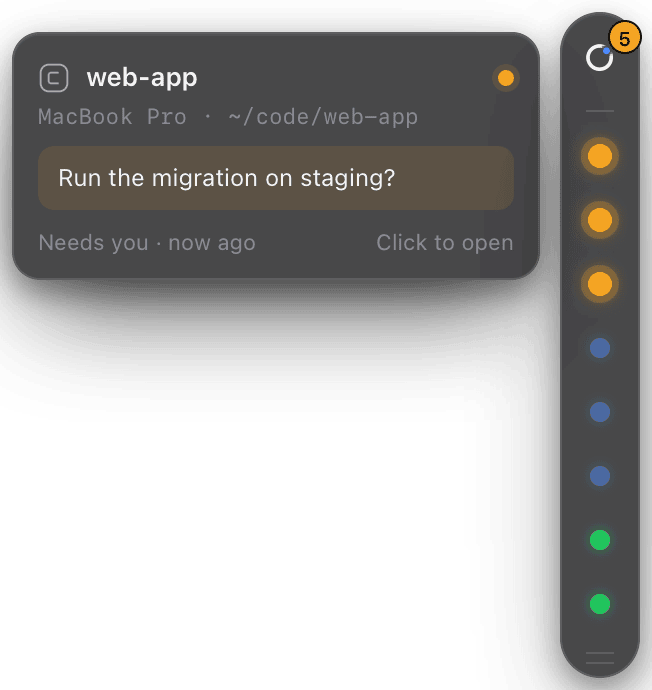
The pill on the edge of your screen shows one dot per agent:
- Amber needs you
- Blue is working
- Green is done
- Red is stuck
Click it to open the Inbox. Drag it to any edge. ⌘ 0 puts the window and the pill back in their default places.
Not getting banners?#
- Check System Settings
Notifications allows notifications.onestation - Check no Focus mode is on, and that notifications aren’t paused in the menu bar.
- Check the event is turned on in Settings
Notifications .
Still stuck?Email us with what you tried. A person reads every message, usually within one working day (CET).
Email support